
In today’s digital world, images and documents are shared every day for work, study, and personal use. One common situation many users face is the need to convert PNG to PDF. Whether you are submitting documents online, creating reports, or combining images into a single file, a PNG to PDF converter makes the process simple and efficient.
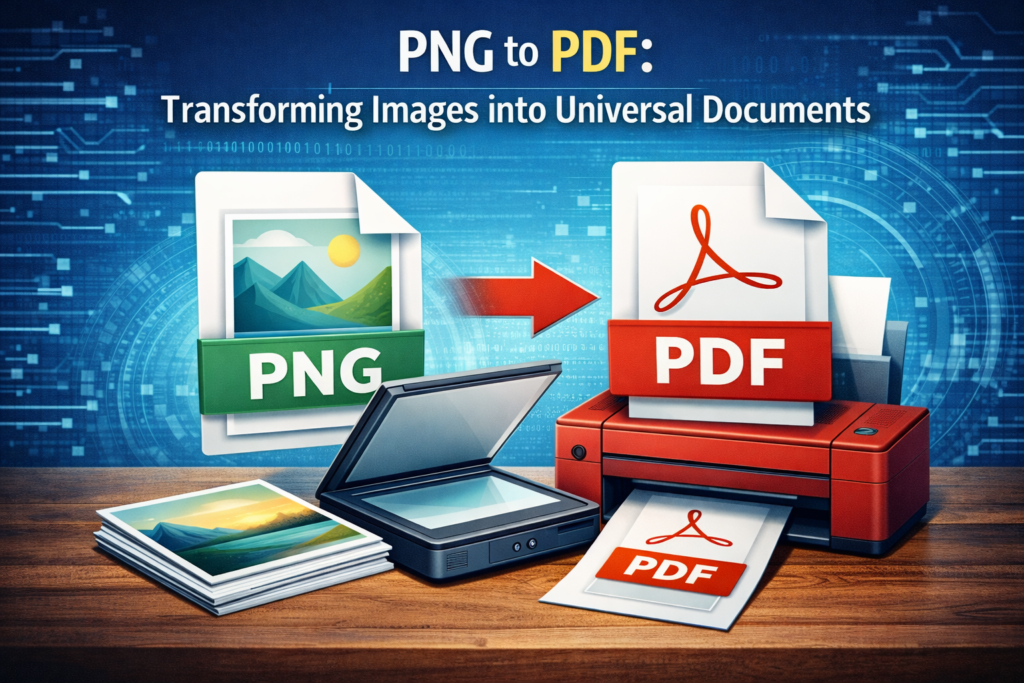
This comprehensive guide explains everything you need to know about png to pdf conversion, including how it works, step-by-step methods, real-life use cases, advantages, and limitations — all in clear, beginner-friendly language.
What Is PNG to PDF Conversion?
PNG (Portable Network Graphics) is an image format widely used for high-quality pictures, screenshots, and graphics with transparent backgrounds. PDF (Portable Document Format), on the other hand, is designed to preserve layout, formatting, and compatibility across all devices.
PNG to PDF conversion means transforming one or multiple PNG images into a single or separate PDF document without losing quality.
In simple words:
- PNG = image format
- PDF = document format
- PNG to PDF = turning images into documents
This conversion allows images to be viewed, printed, shared, and archived more easily.
How Does PNG to PDF Work?
A PNG to PDF converter works by embedding image data inside a PDF container. Instead of changing the image visually, the tool simply restructures the file format.
The process usually involves:
- Uploading PNG image files
- Choosing layout options (page size, orientation, margins)
- Merging or arranging images
- Generating a downloadable PDF file
The original image quality remains the same unless compression is applied.
Tools Used to Convert PNG to PDF
There are multiple tools available depending on your device and preference.
1. PNG to PDF Online Tools
These work directly in your browser and require no installation.
Common features include:
- Drag-and-drop upload
- Merge PNG into PDF
- Page order rearrangement
- Instant download
- Works on all devices
Popular examples include online image-to-PDF converters and cloud-based tools.
2. Desktop Software
Programs such as PDF readers or image editors allow offline conversion. These are useful for large files or sensitive documents.
Features often include:
- Batch conversion
- Password protection
- Compression control
- Offline privacy
3. Mobile Apps
Android and iPhone apps allow users to convert images instantly from their gallery.
Useful features include:
- Camera scan to PDF
- PNG to PDF converter built-in
- Cloud sharing support
- Mobile optimization
Step-by-Step Guide: Convert PNG to PDF Online
Here is a simple method that works for most users:
Step 1: Open a PNG to PDF Converter
Search for png to pdf online using any browser.
Step 2: Upload PNG Images
Click “Upload” or drag your PNG files into the tool.
Step 3: Arrange Images
Reorder pages if you want to merge PNG into PDF correctly.
Step 4: Choose Settings
Select page size (A4, Letter), orientation, and margins.
Step 5: Convert
Click the Convert PNG to PDF button.
Step 6: Download PDF
Save the final PDF file to your device.
This entire process usually takes less than one minute.
Real-Life Use Cases
PNG to PDF conversion is commonly used in everyday situations.
Student Use Case
A university student scans handwritten notes as PNG images and converts them into one PDF for online submission.
Office Work Scenario
An employee receives screenshots of invoices in PNG format and converts them into a single PDF report for email sharing.
Freelancers and Designers
Graphic designers export artwork in PNG and convert it to PDF for client delivery.
Government and Online Forms
Many portals accept only PDF uploads, making PNG to PDF conversion essential.
These real-world examples show why this process is part of daily digital life.
Advantages of Converting PNG to PDF
There are several strong reasons why users prefer PDF format.
✔ Universal Compatibility
PDF files open on all devices without formatting issues.
✔ Professional Appearance
PDF documents look cleaner and more official than image files.
✔ Easy Sharing
Multiple PNG images can be combined into one PDF.
✔ Print-Friendly
PDFs maintain page size and layout for printing.
✔ Secure Storage
PDFs support passwords, encryption, and digital signatures.
Because of these benefits, converting png to pdf is often the preferred solution.
Limitations to Consider
While useful, PNG to PDF conversion has a few limitations:
- PDF files may be larger than PNG images
- Text inside images is not editable
- Compression may reduce quality if enabled
- Advanced features may require paid tools
However, for most daily users, free converters are more than sufficient.
Tips for Best PNG to PDF Results
- Use high-resolution PNG images
- Avoid unnecessary compression
- Choose A4 size for documents
- Merge related images into one PDF
- Rename files properly before conversion
Following these tips ensures professional-quality PDF output.
Frequently Asked Questions
Can I convert PNG to PDF for free?
Yes, many online tools allow free PNG to PDF conversion without registration.
Is PNG to PDF safe?
Most reputable converters use encrypted uploads and auto-delete files after processing.
Can I merge multiple PNG files into one PDF?
Yes, most tools support the option to merge PNG into PDF.
Does PNG to PDF reduce image quality?
No, unless compression settings are applied manually.
Can I convert PNG to PDF on mobile?
Yes, both Android and iPhone support online tools and apps.
Conversion Made Easy in PNG:
A PNG to PDF converter is an essential digital tool for students, professionals, freelancers, and everyday users. Whether you need to submit documents, organize images, or create professional files, converting PNG to PDF offers simplicity, compatibility, and reliability.
With easy online tools, mobile apps, and desktop software available, anyone can convert png to pdf in just a few steps—no technical knowledge required.
If you regularly work with images, learning this simple conversion method can save time, improve organization, and make your documents look more professional.