
How to Open an APK File Safely on Android, Windows, and Mac
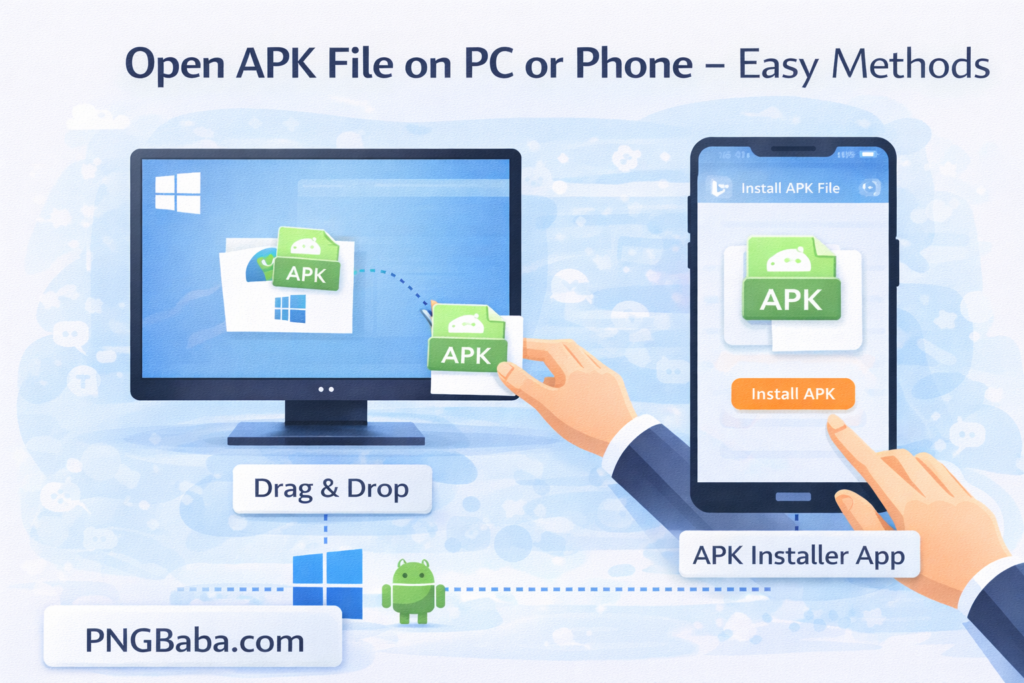
APK files are commonly used to install Android apps outside the Google Play Store. Many users download APK files but feel confused or unsure about how to open them correctly. This guide explains what an APK file is and how to open it safely on different devices using simple steps.
What Is an APK File?
An APK (Android Package Kit) file is the format Android uses to distribute and install apps. It works the same way as an EXE file on Windows or a DMG file on macOS. APK files contain all the data an app needs to install and run on an Android device.
People usually download APK files when an app is not available in their region, when they want an older version of an app, or when testing apps manually.
How to Open an APK File on Android
Opening an APK file on Android is straightforward, but you must allow installation from outside sources.
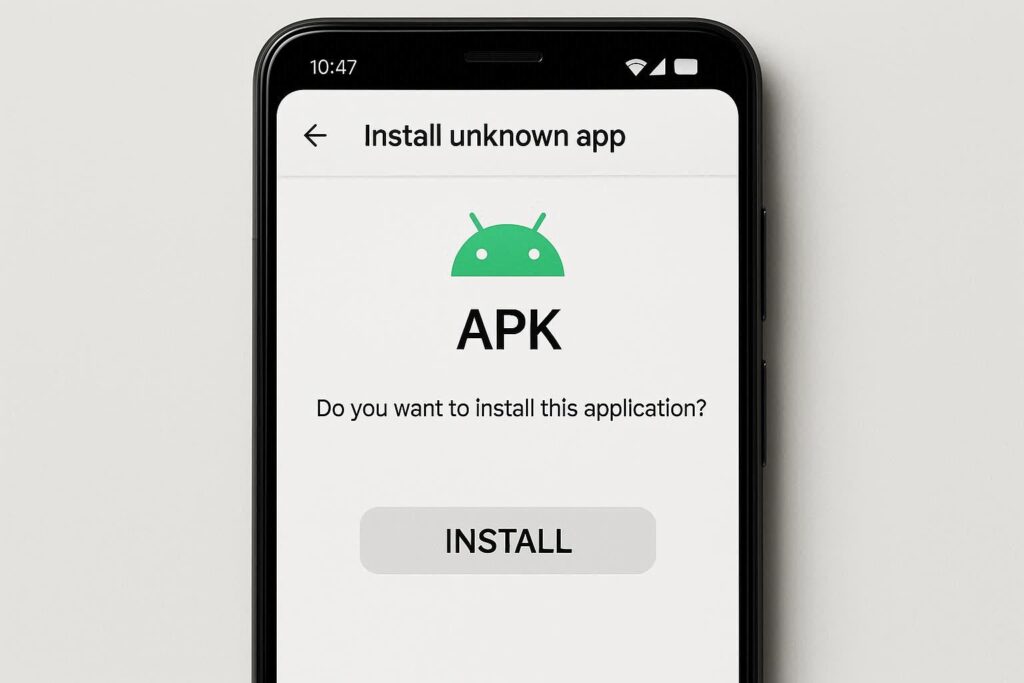
First, download the APK file on your phone. Then go to Settings, open Security or Privacy, and enable Install unknown apps for the browser or file manager you used. After that, locate the APK file in your Downloads folder and tap it. The installation screen will appear, and you can install the app normally.
Once installed, the app will work like any other Android app.
How to Open an APK File on Windows PC
Windows cannot run APK files directly because they are designed for Android. However, you still have options.
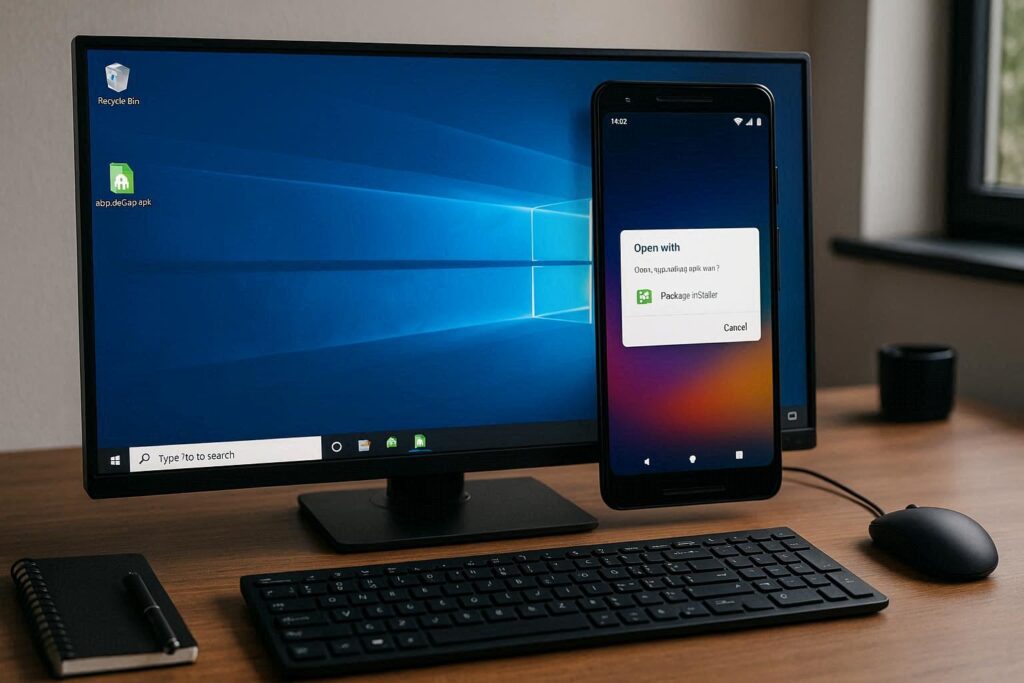
The most common method is using an Android emulator. Emulators allow you to run Android apps on a PC. After installing an emulator, you can drag and drop the APK file into it, and the app will install inside the emulator environment.
If you only want to view the contents of an APK file, you can rename the file extension from .apk to .zip and open it using any archive tool. This method is useful for developers or curious users but does not install the app.
How to Open an APK File on Mac
Mac users also need an Android emulator to open APK files properly. Once the emulator is installed, you can load the APK file and run it just like on an Android phone.
If your goal is only to check files inside the APK, you can extract it using archive software. This lets you view images, code files, and resources stored inside the APK package.
How to Open an APK File Online
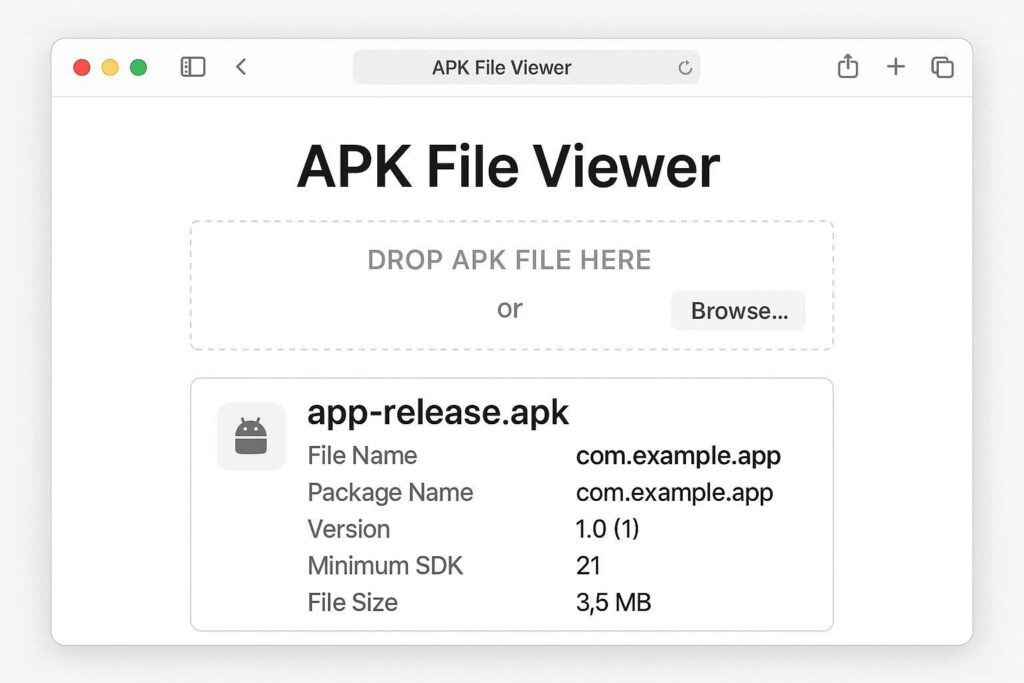
Some websites allow you to upload an APK file and view its contents online. These tools do not install the app but show information such as permissions, app structure, and internal files.
Online APK viewers are useful when you want quick access without installing software, especially on shared or office computers.
How to Open an APK File Without Installing It
If you don’t want to install an app, you can still open an APK file in other ways.
You can extract the APK file like a ZIP archive to explore its contents. This method is safe and does not affect your device. Another option is using online APK analyzers to view app details without installation.
Is It Safe to Open APK Files?
APK files are safe if they come from trusted sources. Problems occur when APK files are downloaded from unknown or unverified websites. These files may contain malware or harmful code.
To stay safe, always download APK files from reliable platforms, check app permissions before installing, and keep your device security features enabled.
APK File Not Opening – Common Fixes
If an APK file does not open, it may be due to compatibility issues or a corrupted download. Make sure the APK file matches your Android version. Try re-downloading the file or using a different file manager.
On PC or Mac, ensure the emulator is updated and supports the app version.
APK vs Play Store Apps
Apps from the Google Play Store are verified and updated automatically. APK files require manual installation and updates but offer more flexibility. Users often choose APK files for early access, region-restricted apps, or older versions.
Both methods work well when used correctly.
Explained How To Open APK File:
Opening an APK file is not difficult once you understand the process. Android devices can install APK files directly, while Windows and Mac require emulators. If you only want to view the file contents, extraction tools and online viewers are enough.