
What Is a WebP File?
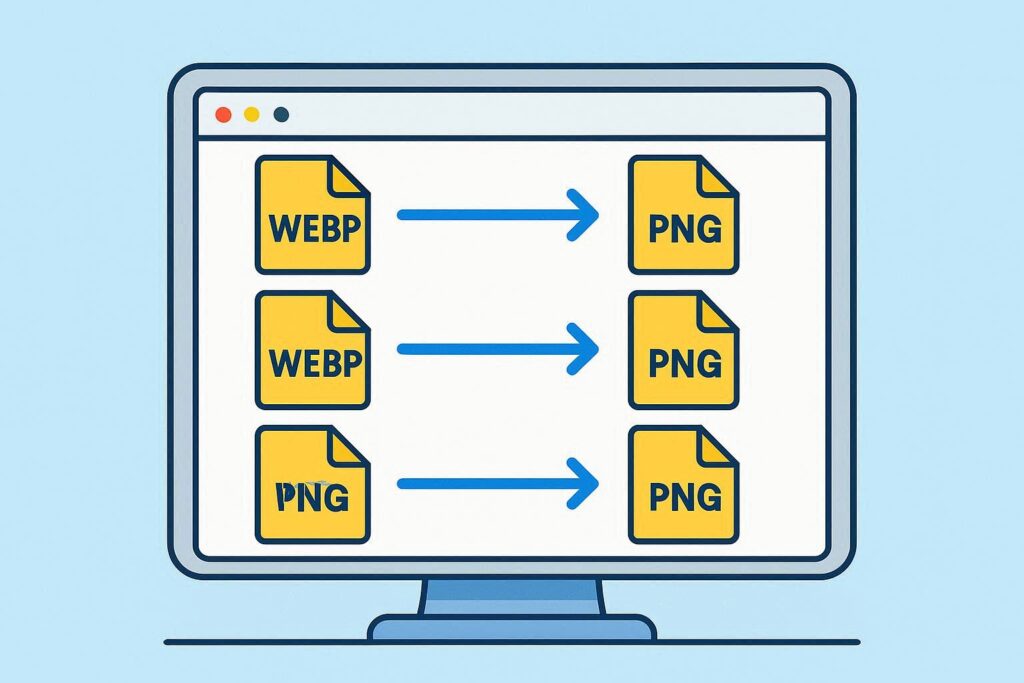
WebP is a modern image format developed by Google to deliver high-quality images at smaller file sizes. It is widely used on websites to improve page load times. WebP supports transparency and animation, similar to PNG and GIF formats, but it is not universally supported across all devices and software.
Because of this limited compatibility, many users need to convert webp to png for easier editing, sharing, or offline use. PNG is widely accepted, preserves high quality, and supports transparent backgrounds, making it ideal for professional and personal use.
Why Convert WebP to PNG?
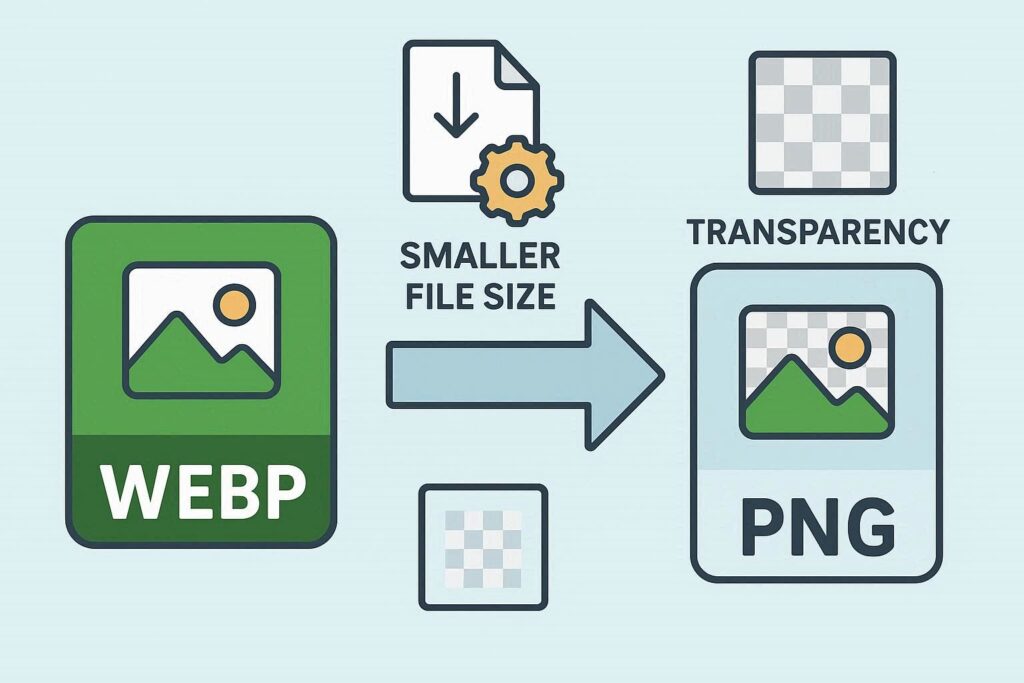
There are several reasons why users often need to convert WebP images to PNG:
- Compatibility: PNG files open on almost every device and software, unlike WebP which may not be supported by older applications.
- Editing: PNG is easier to edit in graphic tools like Photoshop, GIMP, or Paint.
- Printing: PNG images maintain quality and proper dimensions when printed.
- Sharing: PNG is universally accepted for social media, documents, and presentations.
In short, converting WebP to PNG ensures that your images are editable, shareable, and compatible across all platforms.
How to Convert WebP to PNG Online
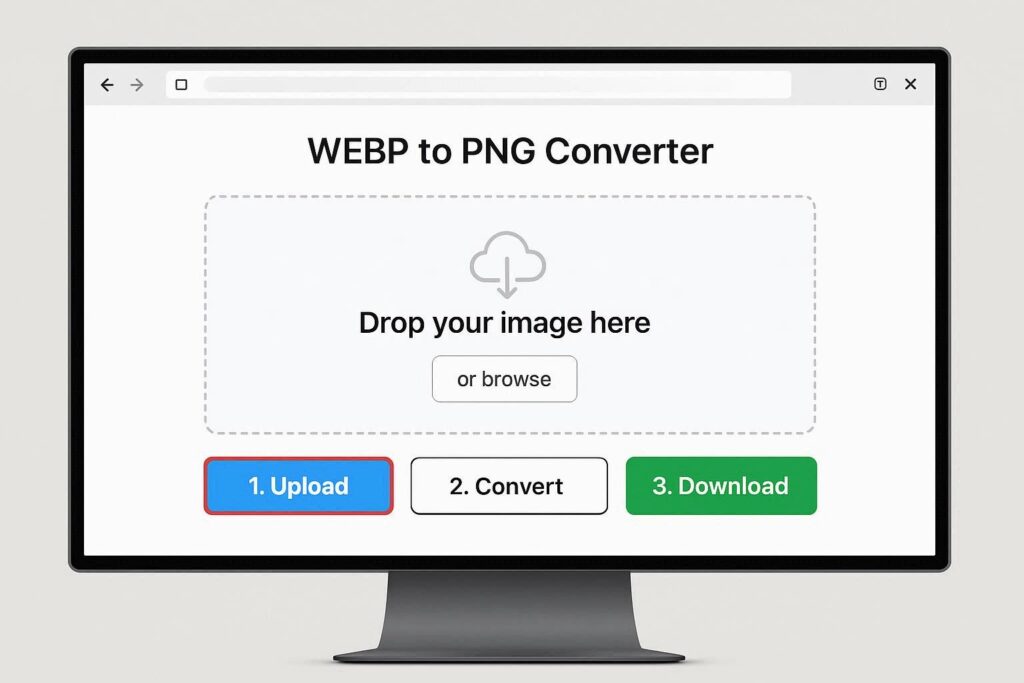
Online conversion is one of the easiest ways to transform WebP images into PNG without installing software.
Step-by-Step Process
- Open a WebP to PNG online converter in your browser.
- Upload your WebP image by clicking Upload or dragging the file.
- Select PNG as the output format.
- Click Convert to start the process.
- Download the converted PNG file to your device.
Online converters are perfect for users who need quick, free, and secure conversion. They often support batch processing, allowing multiple images to be converted at once.
Converting WebP to PNG on Windows
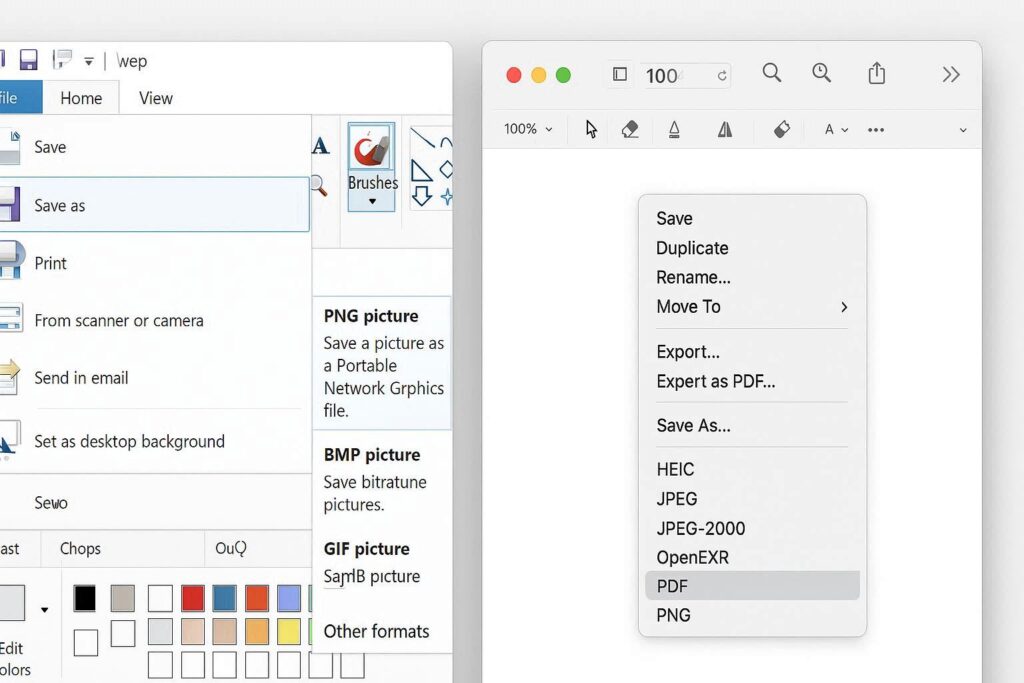
Windows users have multiple options to convert WebP images without using online tools:
Method 1: Using Microsoft Paint
- Open the WebP image in Paint.
- Click File → Save As → PNG.
- Choose the location and save the file.
Method 2: Using Third-Party Software
- Tools like IrfanView or XnConvert allow batch conversion and additional editing features.
Converting WebP to PNG on Mac
Mac users can convert WebP images using built-in tools or third-party apps.
Method 1: Using Preview
- Open the WebP file in Preview.
- Click File → Export.
- Choose PNG as the format and save.
Method 2: Using Online Tools
Online converters work on Mac as well, offering a cross-device solution for batch processing.
Converting WebP to PNG on Mobile Devices
Mobile users can also convert WebP images using apps or online tools:
- Android: Use apps like “Image Converter” or online WebP to PNG tools.
- iPhone/iPad: Use Files app, Photos app, or Safari-based online converters.
Steps:
- Open the app or browser tool.
- Upload the WebP image.
- Select PNG format and convert.
- Download or save the PNG image.
Advantages of Converting WebP to PNG
- Universal Compatibility: Works across devices, software, and browsers.
- Editing Friendly: PNG is widely supported in design and editing software.
- Transparency Support: Ideal for logos and graphics.
- High Quality: Lossless format preserves original image quality.
- Batch Conversion: Multiple WebP images can be combined into PNG files easily.
Limitations of WebP to PNG Conversion
- PNG files are larger in size than WebP, which can affect storage.
- Converting animations from WebP may require advanced tools.
- High-resolution PNG files may take longer to upload or download.
Despite these limitations, PNG remains the best choice for editing, printing, and sharing.
Real-Life Use Cases of WebP to PNG
- Web Designers: Convert WebP images to PNG for editing logos and graphics.
- Students: Convert WebP diagrams or screenshots into PNG for assignments.
- Businesses: Convert product images for catalogues, presentations, and reports.
- Social Media Users: Share PNG images for platforms that do not support WebP.
A freelance designer downloaded WebP images from a website for a client portfolio. Using a WebP to PNG converter, they quickly converted the images, added transparency, and created a professional presentation in PNG format.
FAQ Section (Convert WebP to PNG)
Q1: Can I convert WebP to PNG for free?
A1: Yes, most online tools allow free WebP to PNG conversion.
Q2: Does PNG lose quality after conversion?
A2: No, PNG uses lossless compression, preserving image quality.
Q3: Can I convert multiple WebP images at once?
A3: Yes, batch conversion is supported by many online tools and desktop software.
Q4: Is PNG better than WebP?
A4: WebP is smaller and optimized for the web; PNG is better for editing and sharing.
Complete Method Explained:
Converting WebP to PNG is a simple yet essential task for anyone who works with images. Whether you are a designer, student, business professional, or casual user, converting WebP images ensures compatibility, quality, and editing flexibility.
With online converters, desktop apps, and mobile solutions available, anyone can convert WebP to PNG quickly and easily without technical expertise. Following the steps in this guide guarantees smooth conversion for professional and personal use.